Skip to content
Back to blog
Product 2024-04-03 5 min read

Digital Experience Monitoring with SessionSight | LoadGen

Heatmaps (rage clicks, dead clicks), session replay, visitor tracking, journey analysis. DEM for Citrix, AVD, Omnissa Horizon (formerly VMware).

LoadGen Engineering

Product Strategy

Most monitoring stacks tell you that something happened. Few tell you what the user experienced when it happened. A 99.99 % uptime number is meaningless to the user who rage-clicked through a dead button on the checkout page; a green health check is useless to the operator triaging a help-desk queue full of "everything feels slow" tickets.

That gap is where Digital Experience Monitoring (DEM) lives. SessionSight — LoadGen's DEM module — fills it with heatmaps, session replay, journey analysis, and visitor tracking, all wired into the same platform that runs your load tests, monitoring profiles, and uptime checks. This article walks through what each surface does and how to use them together.

What is Digital Experience Monitoring?

Traditional infrastructure monitoring measures the system. DEM measures the experience.

Traditional monitoring answers questions like:

  • Is the endpoint up?
  • What's the response time?
  • How many errors per minute?

DEM answers questions like:

  • Where did users actually click?
  • Where did they get stuck?
  • Which step in the funnel collapsed?
  • What did the user see when the timeout fired?

Both classes of questions matter. The platform that ignores the second class will surface every issue late — once it shows up in support volume rather than in a dashboard. SessionSight makes the second class first-class.

Heatmaps — frustration before it becomes a ticket

A heatmap is a visualization of where users actually interacted with your application. SessionSight's heatmaps live at /sessionsight/heatmaps and overlay three signals on top of the rendered UI:

  • Click density — Where users clicked most. The right insight to shape layout, button prominence, and information hierarchy.
  • Rage clicks — Repeated clicks on the same element in a short time window. A rage click is a user telling you something isn't responding the way they expect — the button looks clickable but isn't, or the link took longer than they were willing to wait.
  • Dead clicks — Clicks that didn't trigger any state change. Either the element wasn't actually interactive, or the backend hung, or a JavaScript error prevented the handler from running. Whichever it is, the user noticed.

Heatmaps are a leading indicator. The dead-click cluster on a checkout button shows up days before the support tickets do. The rage clicks on a slow-loading dashboard tab show up before the NPS hit.

Session replay — see exactly what the user saw

Heatmaps tell you where. Session replay tells you exactly what happened.

/sessionsight/replay/{SessionId} plays back a real user session — mouse movements, scroll position, clicks, the full DOM as the user saw it. Filter by visitor, by journey, by time range, or by an associated incident. Pair a replay with the corresponding monitoring run, and you have the full picture: the synthetic check that fired, the real user that saw the failure, and the exact moment the experience broke.

Two practical applications:

  • Bug triage. A support ticket says "the date picker doesn't work." The replay shows the date picker rendering fine, the user clicking, and the click going nowhere — because a third-party script blocked. Fix located in five minutes instead of fifty.
  • Onboarding analysis. Watch new users walk through your sign-up flow. Where do they pause? Where do they backtrack? Where do they abandon? The replay isn't an opinion; it's footage.

Visitor tracking and journey analysis

Two surfaces tie individual sessions into broader patterns:

Visitors at /sessionsight/visitors — and per-visitor at /sessionsight/visitors/{VisitorId}:

  • Visitor list with filtering and a detail view
  • Session count per visitor, last seen timestamp, device / browser / OS
  • All sessions for a given visitor — see how their experience evolves

Journeys at /sessionsight/journeys:

  • The actual user paths through the application — node-and-edge graphs reflecting real navigation
  • Funnel analysis with drop-off points highlighted
  • Correlation with monitoring profiles — when synthetic UX validation fails, the corresponding journey shows the impact on real users

Journey analysis is the tool of choice when you want to answer questions like "did rolling out the new dashboard increase or decrease the path to first conversion?" — and have the data to defend either answer.

Goals and funnels

Configure goals — events you care about, like "signed up", "submitted ticket", "completed checkout" — at /config/sessionsight. Each goal feeds a funnel, and each funnel surfaces drop-off points and conversion rates. Wire goal breaches into the alert engine and you get a paged signal the moment a critical conversion path collapses, not in next quarter's NPS report.

This is where SessionSight stops being analytics and starts being operations. The team that owns the funnel gets paged when the funnel breaks; the rest of the company sees the recovery happen in real time.

Correlate with E2E monitoring and load testing

The point of SessionSight isn't to replace your other monitoring — it's to compose with it.

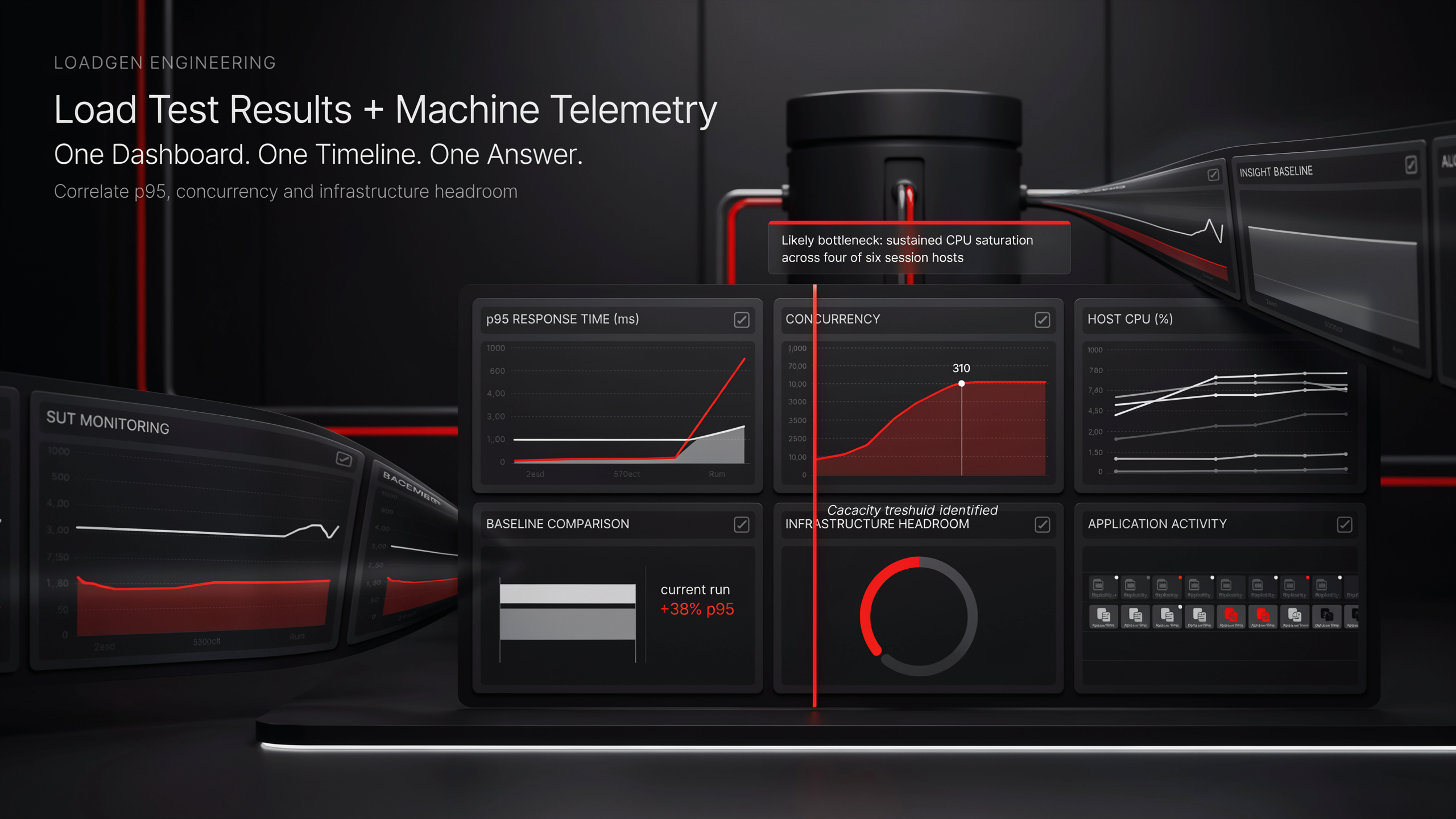
  • Load testing measures capacity. SessionSight shows what the load looked like to a real user during the test window.
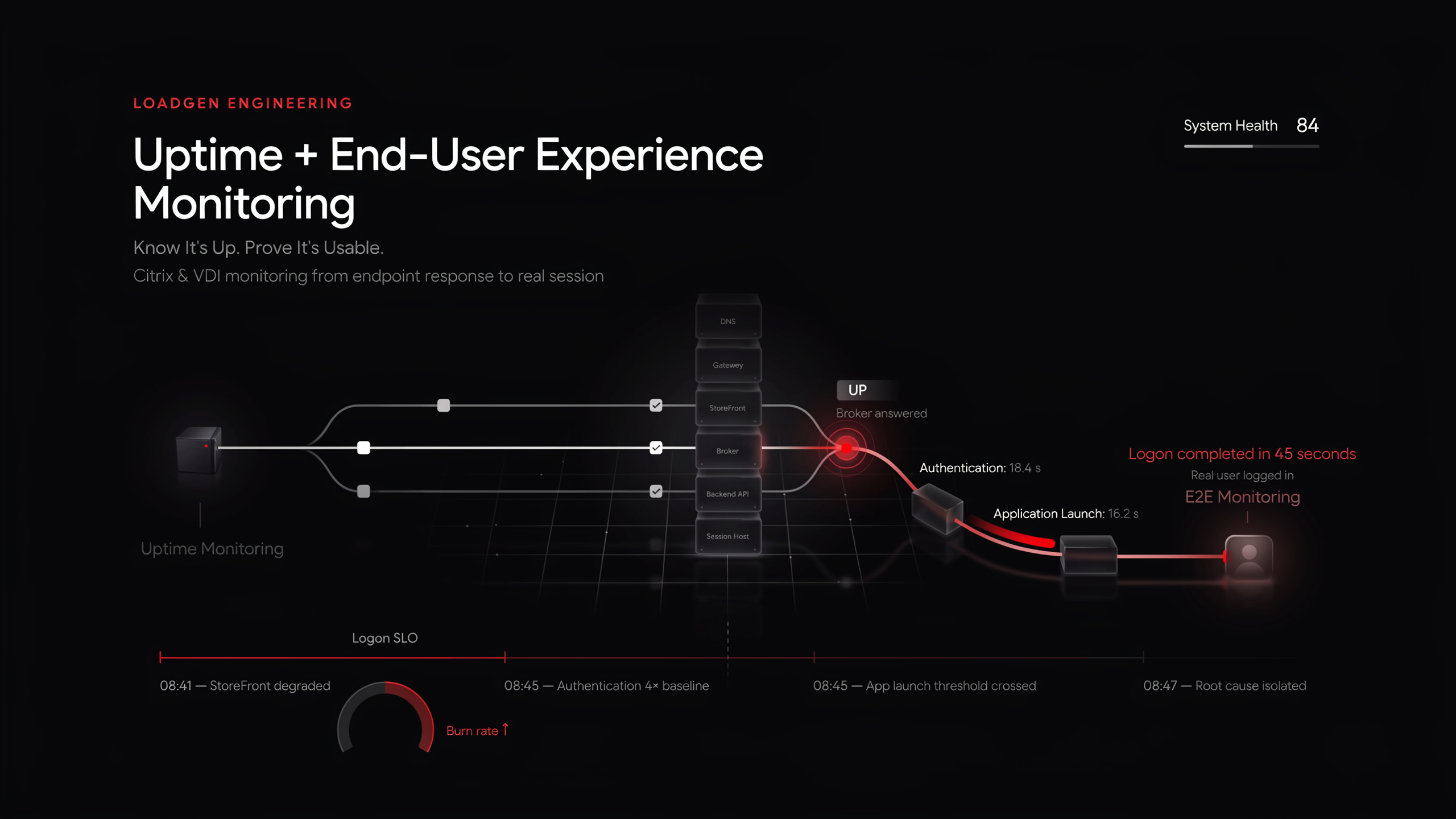
  • E2E monitoring runs synthetic checks at intervals. SessionSight shows the real sessions during those windows — the synthetic green plus the actual user red.
  • Uptime checks answer "is it reachable?" SessionSight answers "did the people who reached it have a good time?"

All three live on the same platform, share the same agents, and write into the same audit trail. No tool-stitching, no time-zone reconciliation between dashboards.

How to apply this in LoadGen

A pragmatic first week with SessionSight:

  1. Configure tracking at /config/sessionsight — define goals that map to your real conversion or retention events.
  2. Open /sessionsight/dashboard after the first 24 hours of traffic to see the baseline shape.
  3. Drill into /sessionsight/heatmaps for any high-traffic page — look for rage and dead clusters.
  4. Pick three sessions from /sessionsight/replay and watch them end-to-end. Pattern recognition starts immediately.
  5. Build a journey at /sessionsight/journeys for a critical path. Track the funnel for one release cycle.
  6. Wire alerts on funnel drop-off so the team owns the path, not just the page.
Reference

Routes reference

| Surface | Route | |---------|-------| | Dashboard | /sessionsight/dashboard | | Heatmaps | /sessionsight/heatmaps | | Journeys | /sessionsight/journeys | | Session replay (index) | /sessionsight/replay | | Replay player | /sessionsight/replay/{SessionId} | | Visitors | /sessionsight/visitors | | Visitor detail | /sessionsight/visitors/{VisitorId} | | Configuration | /config/sessionsight |

Closing thought

Conclusion

DEM is the part of monitoring that catches what the user actually felt. Heatmaps catch frustration before it becomes a ticket; session replay turns a one-line bug report into a forty-second video; journey and visitor analysis turn anonymous metrics into named patterns; goals and funnels turn drift into a paged signal.

SessionSight ships these as a built-in module on the same platform that runs your load tests, your monitoring profiles, and your uptime checks. One platform, one timeline, one truth — instead of three dashboards and a stitched explanation.

Ready to baseline your environment?

Run the wizard, hit the cockpit, watch the audit trail build itself.

LoadGen Official Logo